Hello,
I have an unlocked WRTP54G with 3.1.17-NA firmware and configured with my M@gicJ@ck settings. The phone works great, I can place and receive calls just fine.
My problem is that after a period of phone inactivity, if someone tries to call me, they experience these problems:
From a Land Line: Long silent pause followed by a fast-busy signal.
From a Cell Phone: Never rings, drops call after 2-15 seconds.
The temporary solution is to pick up my home phone, confirm a dial-tone and hang up. All calls come in fine after that until there is another long period of inactivity (haven't narrowed it down, probably 1-2 hours). It's almost like my router is timing out. I'm guessing it's some setting under the Advanced Admin section of the Voice tab.
I know I need to upgrade my firmware but unless everyone thinks that upgrading will solve this particular issue, I'd rather get the kinks worked out before upgrading since everything else seems to be working perfectly.
I'd appreciate any help you guys are willing to throw my way. Thanks.
Unlocked WRTP54G won't receive calls after phone inactivity
Moderators: Bill Smith, Pilot
If your WRTP54g is connected behind a router you will have to activate the "NAT Keep Alive".
Main reason why you are not able to receive calls when you are idle the port that is requested by the ATA will close after a certain time and block incoming traffic to it. The "NAT Keep Alive" feature will send a message out to your router about every 15 seconds to keep the port needed for incoming calls open.
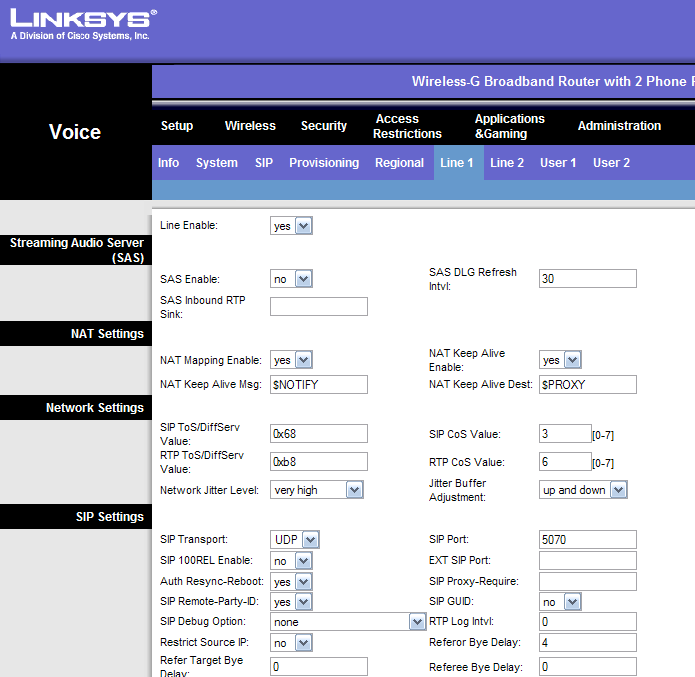
You will need to log-in to your ATA's voice settings and click the advanced link to see the other options. Click on the Line 1 tab and about half way down the you will see the "NAT Keep Alive" is set to "No" by default. Set to "Yes" and save.
Keep in mind this only works if your ATA is behind a router and not connected directly to the NET...
Main reason why you are not able to receive calls when you are idle the port that is requested by the ATA will close after a certain time and block incoming traffic to it. The "NAT Keep Alive" feature will send a message out to your router about every 15 seconds to keep the port needed for incoming calls open.
You will need to log-in to your ATA's voice settings and click the advanced link to see the other options. Click on the Line 1 tab and about half way down the you will see the "NAT Keep Alive" is set to "No" by default. Set to "Yes" and save.
Keep in mind this only works if your ATA is behind a router and not connected directly to the NET...
That's my quarter's worth, but not enough to call someone who really cares at a pay telephone booth...
trek101,
Thanks for the reply. I had read something else today that pointed towards the NAT Keep Alive setting but your explanation was much better and makes perfect sense. My WRTP54G is only being used as my phone router and isn't the router that's connected directly to my cable modem.
I upgraded my firmware from 3.1.17 to 3.1.24 and enabled NAT Keep Alive on Line 1 so I'll test it out and report back. Thanks agin.
Thanks for the reply. I had read something else today that pointed towards the NAT Keep Alive setting but your explanation was much better and makes perfect sense. My WRTP54G is only being used as my phone router and isn't the router that's connected directly to my cable modem.
I upgraded my firmware from 3.1.17 to 3.1.24 and enabled NAT Keep Alive on Line 1 so I'll test it out and report back. Thanks agin.
WRTP54G with 3.1.17-NA firmware ( unlocked already by me awile back )
ok um first off ive had this working for another provider in Canada a SIP account and used it for line 1 and of course there is 2 lines on this router
ok first off how do i set everything to default for voice only ?
i tried to but it asked for user name and password for restore voice settings but i cant seem to remember what it was
where is the instructions to put the mgicjack settings into WRTP54G with 3.1.17- i have my magicjack Info, thanks to this forum but where is an explaination to putting it into this device ?
thank you
ok um first off ive had this working for another provider in Canada a SIP account and used it for line 1 and of course there is 2 lines on this router
ok first off how do i set everything to default for voice only ?
i tried to but it asked for user name and password for restore voice settings but i cant seem to remember what it was
where is the instructions to put the mgicjack settings into WRTP54G with 3.1.17- i have my magicjack Info, thanks to this forum but where is an explaination to putting it into this device ?
thank you
Can't get on at all with WRTP54G....
I have been having issues setting up my WRTP54G up. I can't seem to get on and have no dial tone and have followed the configuration page setup for PAP2 as suggested by mberland. How did you get your going Mr. Vile? I am just trying to figure out how to upgrade my firmware first to 3.1.24 first cuz that might help me solve my problem. Any ideas?
Stryker
Stryker
You got that right.....
LOL!!! Yeah, get the WRT400 as you say but still would be nice to get this WRPT54G going. Getting close though.bigstevep wrote:Yeah...buy yourself a WRT400 and get rid of the problem...haha..Hey Stryker good to see you learning Bro...hit me up on MSN if you need help with the config.
Stryker
Stryker,
Sorry I didn't get back to you sooner, I just got an e-mail that I had a message waiting here.
WRTP54G Firmware:
I modified v3.1.24 and v3.1.27 with instructions found on the Internet. Unmodified firmware will not install on hacked routers. I strongly recommend you modify your own because it's a good learning experience but I've included my already modified versions below. If you'd like to at least try to modify your the originals, here's the information you need:
<3.1.24>
Change HEX offset 0x17 from 4D to 4C
Change HEX offset 0x3B0004 from 71 FB 16 5F to CF 84 7B 3E
<3.1.27>
Change HEX offset 0x17 from 4D to 4C
Change HEX offset 0x3B0004 from B0 C9 8B 1C to 0E B6 E6 7D
If you'd rather just download the firmware that I modified, have at it:
<3.1.24>
http://www.mediafire.com/?2zepmmpidxt
<3.1.27>
http://www.mediafire.com/?om7xmg9mhvs
WRTP54G Configuration:
Change the following settings on the router:
<PROVISIONING>
Provision Enable: No
<LINE 1>
NAT Keep Alive Enable: Yes
SIP Port: xxxx
Proxy: xxx.xxx.xxx.xxx:xxxx
Display Name: (caller ID name)
Password: (password)
Auth ID: (same as User ID)
User ID:
The information under LINE 1 is your SIP information from your phone provider. That's all you should need to configure to have an operational phone. I hope this helps.
Sorry I didn't get back to you sooner, I just got an e-mail that I had a message waiting here.
WRTP54G Firmware:
I modified v3.1.24 and v3.1.27 with instructions found on the Internet. Unmodified firmware will not install on hacked routers. I strongly recommend you modify your own because it's a good learning experience but I've included my already modified versions below. If you'd like to at least try to modify your the originals, here's the information you need:
<3.1.24>
Change HEX offset 0x17 from 4D to 4C
Change HEX offset 0x3B0004 from 71 FB 16 5F to CF 84 7B 3E
<3.1.27>
Change HEX offset 0x17 from 4D to 4C
Change HEX offset 0x3B0004 from B0 C9 8B 1C to 0E B6 E6 7D
If you'd rather just download the firmware that I modified, have at it:
<3.1.24>
http://www.mediafire.com/?2zepmmpidxt
<3.1.27>
http://www.mediafire.com/?om7xmg9mhvs
WRTP54G Configuration:
Change the following settings on the router:
<PROVISIONING>
Provision Enable: No
<LINE 1>
NAT Keep Alive Enable: Yes
SIP Port: xxxx
Proxy: xxx.xxx.xxx.xxx:xxxx
Display Name: (caller ID name)
Password: (password)
Auth ID: (same as User ID)
User ID:
The information under LINE 1 is your SIP information from your phone provider. That's all you should need to configure to have an operational phone. I hope this helps.
Thanks so much....
Thanks for putting up the modded software...worked great and was able to update my router to 3.1.27 perfectly. I entered my SIP info but still am getting "failed" in line 1 status. Not sure what I am doing wrong. But I am closer to solving my problem. At least now I was able to upgrade my software.MrVile wrote:Stryker,
Sorry I didn't get back to you sooner, I just got an e-mail that I had a message waiting here.
WRTP54G Firmware:
I modified v3.1.24 and v3.1.27 with instructions found on the Internet. Unmodified firmware will not install on hacked routers. I strongly recommend you modify your own because it's a good learning experience but I've included my already modified versions below. If you'd like to at least try to modify your the originals, here's the information you need:
<3.1.24>
Change HEX offset 0x17 from 4D to 4C
Change HEX offset 0x3B0004 from 71 FB 16 5F to CF 84 7B 3E
<3.1.27>
Change HEX offset 0x17 from 4D to 4C
Change HEX offset 0x3B0004 from B0 C9 8B 1C to 0E B6 E6 7D
If you'd rather just download the firmware that I modified, have at it:
<3.1.24>
http://www.mediafire.com/?2zepmmpidxt
<3.1.27>
http://www.mediafire.com/?om7xmg9mhvs
WRTP54G Configuration:
Change the following settings on the router:
<PROVISIONING>
Provision Enable: No
<LINE 1>
NAT Keep Alive Enable: Yes
SIP Port: xxxx
Proxy: xxx.xxx.xxx.xxx:xxxx
Display Name: (caller ID name)
Password: (password)
Auth ID: (same as User ID)
User ID:
The information under LINE 1 is your SIP information from your phone provider. That's all you should need to configure to have an operational phone. I hope this helps.
Stryker1
If my memory serves me correctly WRTP54g is pretty much the same as the RTP300 just with the exception of WiFi.
If you need to activate "NAT Keep Alive" you will need to click on "Admin" then "advanced" display links first. Other than that everything should goes as follows:
<LINE 1>
NAT Keep Alive Enable: Yes
SIP Port: 5060
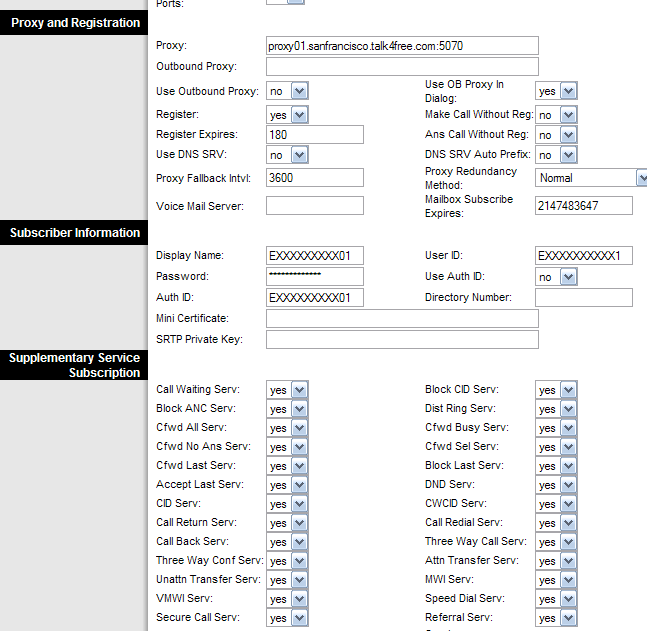
Proxy: proxy1.<city>.talk4free.com:5070 (you may use an IP instead it should work either way)
Display Name: (caller ID name)
Password: (password)
Auth ID: (leave blank)
User ID: Exxxxxxxxxx01 (x= 10 digit phone number including area code)
--------------------------------------------------------------------------------------------------------------------------------------------------------
Keep in mind that "NAT Keep Alive" is not really needed if your router is connected directly to your broadband modem and it is obtaining a public IP. The keep alive feature just sends pings out to keep the need ports active in order for you to receive inbound calls.
The only known issue that I have experienced with "NAT Keep Alive" is problematic is if you are on an ADSL gateway/router. Calls will route without an issue for about a few days then it will pretty much blocks the SIP port. Ma Bell up to their olde tricks? Not sure, but the work around is when you connect your ATA to your ADSL gateway/router. Login into your gateway/router and setup your DMZ host to your ATA's assigned private LAN IP. Doing this will not pose a security issue since any incoming packets will traverse from the WAN to LAN side to your WRTP54g.
Wishing you the best of luck if you are on ADSL since work arounds varies greatly from ISP to ISP. Alot of them are utilising gateway/router devices, so you are not on the public IP which tends to wreck havoc on inbound IP traffic...
If you need to activate "NAT Keep Alive" you will need to click on "Admin" then "advanced" display links first. Other than that everything should goes as follows:
<LINE 1>
NAT Keep Alive Enable: Yes
SIP Port: 5060
Proxy: proxy1.<city>.talk4free.com:5070 (you may use an IP instead it should work either way)
Display Name: (caller ID name)
Password: (password)
Auth ID: (leave blank)
User ID: Exxxxxxxxxx01 (x= 10 digit phone number including area code)
--------------------------------------------------------------------------------------------------------------------------------------------------------
Keep in mind that "NAT Keep Alive" is not really needed if your router is connected directly to your broadband modem and it is obtaining a public IP. The keep alive feature just sends pings out to keep the need ports active in order for you to receive inbound calls.
The only known issue that I have experienced with "NAT Keep Alive" is problematic is if you are on an ADSL gateway/router. Calls will route without an issue for about a few days then it will pretty much blocks the SIP port. Ma Bell up to their olde tricks? Not sure, but the work around is when you connect your ATA to your ADSL gateway/router. Login into your gateway/router and setup your DMZ host to your ATA's assigned private LAN IP. Doing this will not pose a security issue since any incoming packets will traverse from the WAN to LAN side to your WRTP54g.
Wishing you the best of luck if you are on ADSL since work arounds varies greatly from ISP to ISP. Alot of them are utilising gateway/router devices, so you are not on the public IP which tends to wreck havoc on inbound IP traffic...
That's my quarter's worth, but not enough to call someone who really cares at a pay telephone booth...
Still a no go.....
I have these settings for the WRPT54G and had problems and could not get a dial tone. I now got a WRP400 and can't get that going either even though a friend of mine who has a WRP400 was able to get his working and I used the same settings as his and also tried the PAP2 configuration sticky also with no success. He even used my MJ Sip settings on his and got a dial tone. Also, keep in mind, I am able to make MJ calls with the dongle when its hooked to my computer. Any guess as to what I am doing wrong here.trek101 wrote:If my memory serves me correctly WRTP54g is pretty much the same as the RTP300 just with the exception of WiFi.
If you need to activate "NAT Keep Alive" you will need to click on "Admin" then "advanced" display links first. Other than that everything should goes as follows:
<LINE 1>
NAT Keep Alive Enable: Yes
SIP Port: 5060
Proxy: proxy1.<city>.talk4free.com:5070 (you may use an IP instead it should work either way)
Display Name: (caller ID name)
Password: (password)
Auth ID: (leave blank)
User ID: Exxxxxxxxxx01 (x= 10 digit phone number including area code)
--------------------------------------------------------------------------------------------------------------------------------------------------------
Keep in mind that "NAT Keep Alive" is not really needed if your router is connected directly to your broadband modem and it is obtaining a public IP. The keep alive feature just sends pings out to keep the need ports active in order for you to receive inbound calls.
The only known issue that I have experienced with "NAT Keep Alive" is problematic is if you are on an ADSL gateway/router. Calls will route without an issue for about a few days then it will pretty much blocks the SIP port. Ma Bell up to their olde tricks? Not sure, but the work around is when you connect your ATA to your ADSL gateway/router. Login into your gateway/router and setup your DMZ host to your ATA's assigned private LAN IP. Doing this will not pose a security issue since any incoming packets will traverse from the WAN to LAN side to your WRTP54g.
Wishing you the best of luck if you are on ADSL since work arounds varies greatly from ISP to ISP. Alot of them are utilising gateway/router devices, so you are not on the public IP which tends to wreck havoc on inbound IP traffic...
Stryker
Stryker,
Configure your router with the information we've given you or however your friend's router is configured. Once you're satisfied with the settings, unplug everything (including power) from your cable modem and your phone router. Connect your phone router's WAN port to your cable modem, connect one corded phone to the LINE 1 port, plug the power back in for the cable modem and let it initialize, plug the power in for your phone router and let it initialize (after the cable modem has initialized), and check your phone for a dial tone. This should remove all other possibilities that could be causing problems. If this doesn't work, it hasta be a configuration problem on your phone router. Let us know what you find out.
*Be sure your MJ is never plugged in at the same time as your phone router*
Configure your router with the information we've given you or however your friend's router is configured. Once you're satisfied with the settings, unplug everything (including power) from your cable modem and your phone router. Connect your phone router's WAN port to your cable modem, connect one corded phone to the LINE 1 port, plug the power back in for the cable modem and let it initialize, plug the power in for your phone router and let it initialize (after the cable modem has initialized), and check your phone for a dial tone. This should remove all other possibilities that could be causing problems. If this doesn't work, it hasta be a configuration problem on your phone router. Let us know what you find out.
*Be sure your MJ is never plugged in at the same time as your phone router*
Hey bro, thanks for all the help you have given me. I followed the configuration from the Pap2 configuration that is posted here...the one with all the pics. Followed every line down and did a full restart of modem as well well as the wirless router and still no go. No dial tone and line one status "registration failed". Now I am gonna set up friends and get back to you on this a little later and do a full reset of the system. Yeah, MJ is lying on the table not plugged up to anything. Be getting back to this tomorrow and keep you updated. Thanks again.MrVile wrote:Stryker,
Configure your router with the information we've given you or however your friend's router is configured. Once you're satisfied with the settings, unplug everything (including power) from your cable modem and your phone router. Connect your phone router's WAN port to your cable modem, connect one corded phone to the LINE 1 port, plug the power back in for the cable modem and let it initialize, plug the power in for your phone router and let it initialize (after the cable modem has initialized), and check your phone for a dial tone. This should remove all other possibilities that could be causing problems. If this doesn't work, it hasta be a configuration problem on your phone router. Let us know what you find out.
*Be sure your MJ is never plugged in at the same time as your phone router*
Stryker
Okay, I tried with my friends settings which worked for him. I unplugged everything and restarted and am still getting no connection. I am using Panasonic 2.4 Ghz wirelss phone. I am wondering if it might be the phone however in the "info" settings under "voice" this is what I get...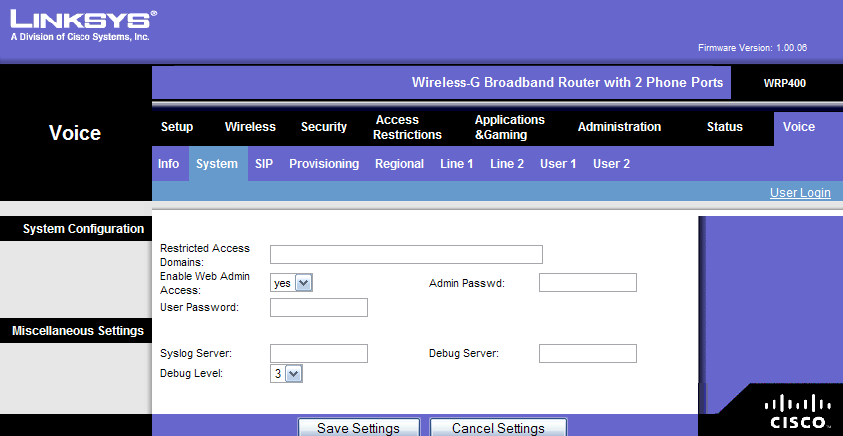
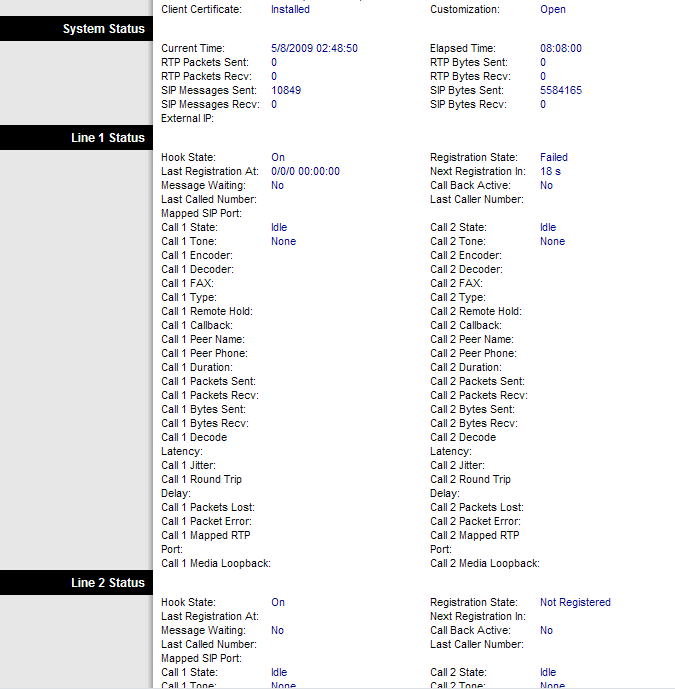
IMG]http://i419.photobucket.com/albums/pp27 ... ipSip1.png[/IMG]
IMG]http://i419.photobucket.com/albums/pp27 ... ipSip2.png[/IMG]
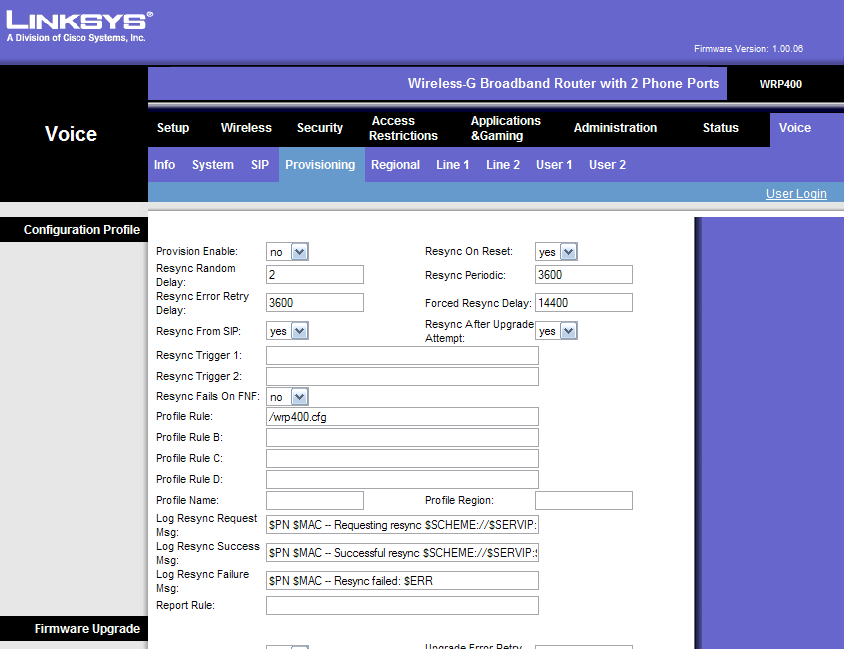
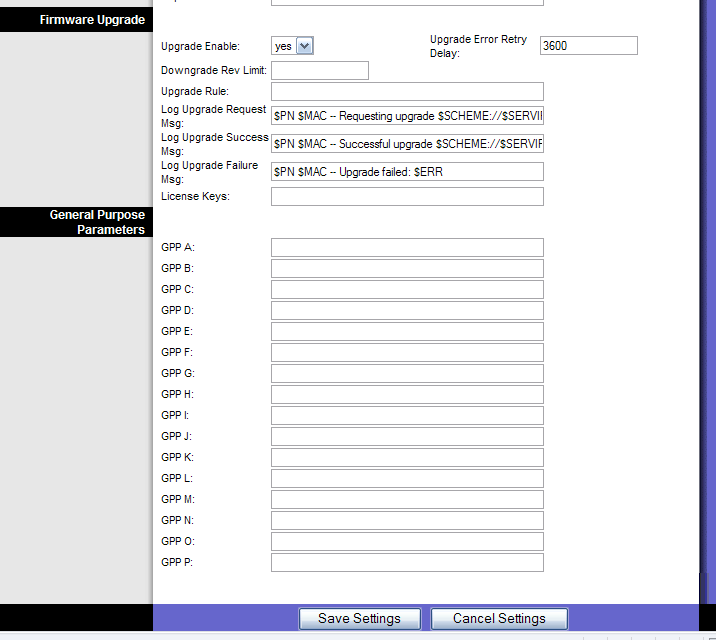
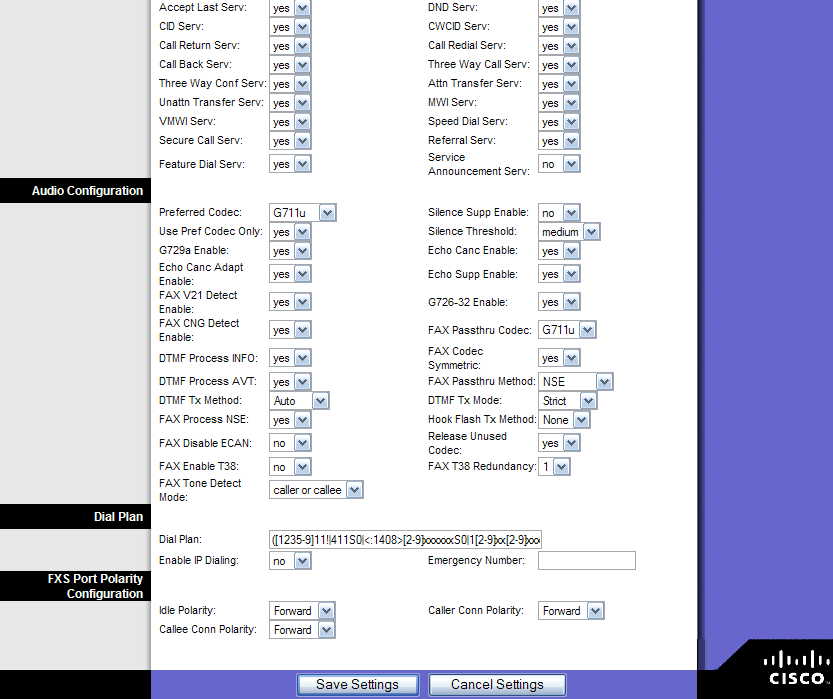
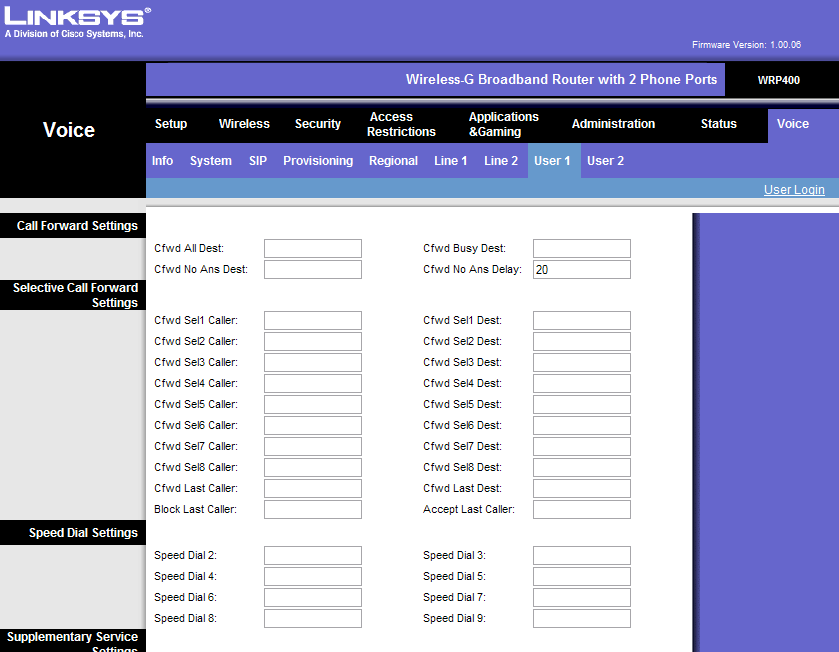
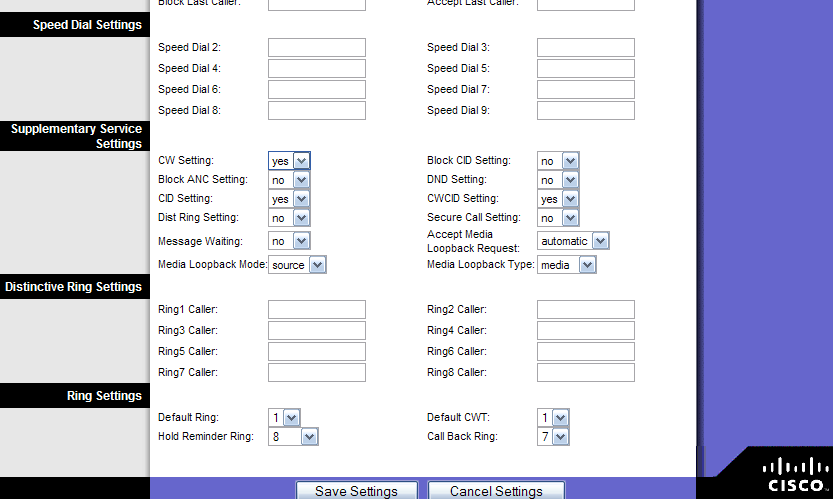
Hope I can get this figured out. Thanks.
Stryker
IMG]http://i419.photobucket.com/albums/pp27 ... ipSip1.png[/IMG]
IMG]http://i419.photobucket.com/albums/pp27 ... ipSip2.png[/IMG]
Hope I can get this figured out. Thanks.
Stryker
Stryker,
The only thing that's important are just a few settings under LINE 1, you shouldn't hafta change anything else on the router to get a dialtone. So, to start fresh, you're gonna need to do a hard reset on your phone router. If you aren't familiar with this, you just need to push a paperclip into the little hole on the back of the router (usually next to where you plug in the power cord) to depress the small button inside for about 10 seconds. This should reboot your router, wipe out all your setting and reset everything to default. Next, login to your router as admin, go to the Advanced Admin section of the Voice tab, click on the LINE 1 tab and only change the following settings:
<LINE 1>
NAT Keep Alive Enable: Yes
SIP Port: 5070
Proxy: xxx.xxx.xx.x:5070 (where xxx.xxx.xx.x = your SIP proxy IP)
Display Name: (enter whatever you want to show up as your caller ID. I just put my 10 digit phone number here.)
User ID: Exxxxxxxxxx01 (where xxxxxxxxxx = your phone number)
Password: (enter your password here)
Save the settings and check for dialtone.
The only thing that's important are just a few settings under LINE 1, you shouldn't hafta change anything else on the router to get a dialtone. So, to start fresh, you're gonna need to do a hard reset on your phone router. If you aren't familiar with this, you just need to push a paperclip into the little hole on the back of the router (usually next to where you plug in the power cord) to depress the small button inside for about 10 seconds. This should reboot your router, wipe out all your setting and reset everything to default. Next, login to your router as admin, go to the Advanced Admin section of the Voice tab, click on the LINE 1 tab and only change the following settings:
<LINE 1>
NAT Keep Alive Enable: Yes
SIP Port: 5070
Proxy: xxx.xxx.xx.x:5070 (where xxx.xxx.xx.x = your SIP proxy IP)
Display Name: (enter whatever you want to show up as your caller ID. I just put my 10 digit phone number here.)
User ID: Exxxxxxxxxx01 (where xxxxxxxxxx = your phone number)
Password: (enter your password here)
Save the settings and check for dialtone.
You da man MrVile!!!
Bro, you are da man!!! I figured out what I was doing wrong. It turns out I had to use Proxy IP and the proxy01.sanfrancisco.talk4free.com did not work when I inputted that into the line 1. Only the IP addy worked. Not sure why but I guess my cable provider does not use DNS. Thanks so much my man, got the dial tone and all is good.MrVile wrote:Stryker,
The only thing that's important are just a few settings under LINE 1, you shouldn't hafta change anything else on the router to get a dialtone. So, to start fresh, you're gonna need to do a hard reset on your phone router. If you aren't familiar with this, you just need to push a paperclip into the little hole on the back of the router (usually next to where you plug in the power cord) to depress the small button inside for about 10 seconds. This should reboot your router, wipe out all your setting and reset everything to default. Next, login to your router as admin, go to the Advanced Admin section of the Voice tab, click on the LINE 1 tab and only change the following settings:
<LINE 1>
NAT Keep Alive Enable: Yes
SIP Port: 5070
Proxy: xxx.xxx.xx.x:5070 (where xxx.xxx.xx.x = your SIP proxy IP)
Display Name: (enter whatever you want to show up as your caller ID. I just put my 10 digit phone number here.)
User ID: Exxxxxxxxxx01 (where xxxxxxxxxx = your phone number)
Password: (enter your password here)
Save the settings and check for dialtone.
Stryker


