Thanks to jeffnyc, qwer1304, and Taken83oveR's post on the following thread for guiding me- http://www.phoneservicesupport.com/ddwr ... t6913.html
Since I was totally new to this, it took me about 6 hours to figure everything out. The biggest hurdle being I am not familiar with linux commands that were available once telneted to my router. The following link lists all commands available for Busy Box which is what my router uses and is an excellent resource - http://en.wikipedia.org/wiki/BusyBox
Summary of steps that need to be completed:
1. Enable jffs in Tomato via the Administration section
2. Enable ssh in Tomato via the Administration section
3. Install putty on PC (download the 'Windows installer for everything except PuTTYtel' version)
4. Download the Tomato version of mjproxy from teddy_b's post
5. Upload mjproxy to Tomato (jffs) with putty using Windows command prompt with -scp option
6. Telnet into your router via putty (login as 'root' and enter Tomato password)
7. Execute the following command while connected to your router via putty - 'Chmod mjproxy to 755'
8. Put command line in Tomato Administration/Scripts/Init tab
9. Change the proxy IP in your ATA Line 1 tab to that of your Tomato router
10. Verify that mjproxy is working using the top command
Detailed instructions with screenshots below:
1. Enable jffs in Tomato via the Administration section
I also clicked the 'Format/Erase' button so that I have a clean slate to work with.
I wasn't worried about deleting anything since I just enabled it.

2. Enable ssh in Tomato via the Administration section

3. Install putty on PC (download the 'Windows installer for everything except PuTTYtel' version)
Link to PuTTY download page-
http://www.chiark.greenend.org.uk/~sgta ... nload.html
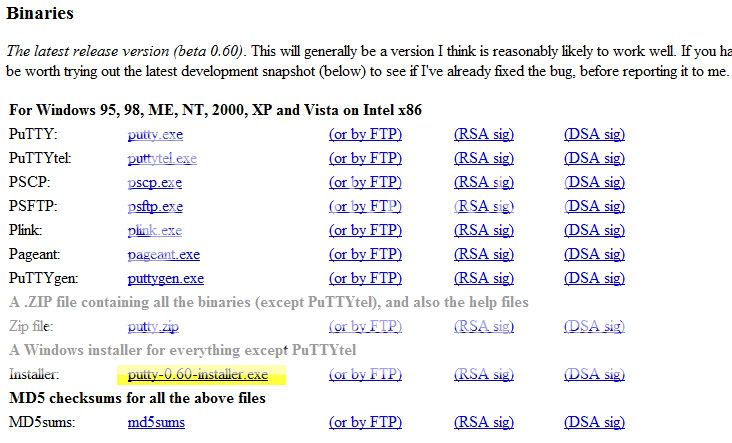
4. Download the Tomato version of mjproxy from teddy_b's post
Extract mjproxy to Program Files/Putty folder.
NOTE: I needed to unzip the file twice.
5. Upload mjproxy to Tomato (jffs) with putty using Windows command prompt with -scp optionteddy_b wrote:I don't have a DD-WRT router either, but here are a couple binaries compiled using Tomato toolchain.
1. The first one is what I'm running on my Tomato router:
http://www.mediafire.com/file/twkmijnm3 ... ato.tar.gz
It might work on DD-WRT - I have no way to check myself.
2. If the 1st one doesn't work, try the other one:
http://www.mediafire.com/file/n2zzlmkiy ... tic.tar.gz
This one is statically linked with uclibc - the executable is larger but doesn't depend on the libc version - has better chances to run on dd-wrt (only on mipsel routers of course).
Open a Windows command window (via Start/Run/Cmd) and navigate to the putty directory. Notice in the screenshot below I executed the command from the following directory- C:\Program Files\PuTTY
Then type in the following command-
"pscp -scp mjproxy [email protected]:/jffs" (assuming 192.168.1.1 is your router IP)

6. Telnet into your router via putty (login as 'root' and enter Tomato password)
Open putty and enter the IP address of your Tomato router in the 'Host Name' textbox and then click open

A telnet session window is created and log in as root and enter your Tomato password when prompted
(Note: when you enter your password the cursor doesn't move)

7. Execute the following command while connected to your router via putty - 'chmod mjproxy to 755'
In my screenshot below I first looked for mjproxy to verify that I successfully uploaded it.
After I executed the chmod command I noticed that mjproxy changed to a green color.
For those not familiar with linux- I used the following commands to look for mjproxy
pwd = present working directory
ls = list files in this directory
cd = change directory

8. Put the following command line in the Tomato Administration/Scripts/Init tab
sleep 30
/jffs/mjproxy 0.0.0.0 5070 proxy01.chicago.talk4free.com 5070 your_MJ_password

9. Change the proxy IP in your ATA Line 1 tab to that of your Tomato router
I also enabled NAT Keepalive because I was having issues with incoming calls.

10. Verify that mjproxy is working by using the 'top' command while connected to your router via putty. (Type ctrl-c to stop the top command)
This was really helpful for me in debugging because it turned out that mjproxy wasn't running on my router so I had to manually execute mjproxy.
Just enter 'top' at the telnet command prompt and ctrl-c to stop.
If mjproxy is running you should see a line similar to the one below in yellow-

That should be all to it. Log into your ATA and confirm that your registration status is 'Online'. One thing I did notice is that it took about 3-5 minutes before my ATA registration status changed to 'Online' after manualy executing the mjproxy command.


 OK OK I just joined this forum and have several questions.
